
You step into your basement office, walk through the concrete hallway of an apartment building, or pull into a rural driveway, and your phone reception drops to “No Service.” Mid-sentence, your voice cuts out, the call drops, and incoming texts freeze. Cellular signals frequently struggle to penetrate energy-efficient glass, reinforced concrete, corrugated steel, and dense terrain.
Wi-Fi calling fixes this without requiring expensive signal boosters or a new carrier. Instead of routing your call through a distant cell tower, your smartphone packages your voice and text data into secure digital packets sent over your local wireless internet connection. Those packets travel through your home or office broadband straight to your carrier’s core network.
Because the feature is built into your phone, it works through your standard dialer. You do not need to install apps like WhatsApp or Skype, set up extra accounts, or ask contacts to switch platforms. You dial standard numbers from your regular contact list, and your normal caller ID appears on the recipient’s screen.
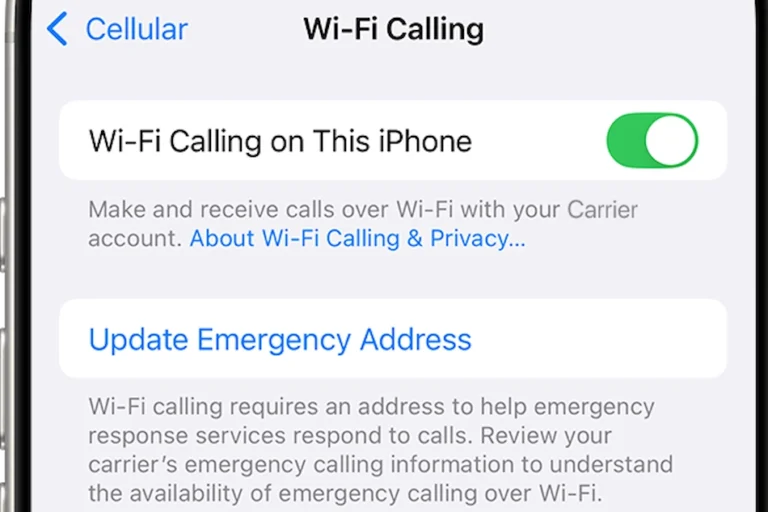
How to Turn On Wi-Fi Calling on an iPhone
Enabling Wi-Fi calling on iOS takes less than a minute, though it includes a quick address verification step to comply with emergency service regulations. Here is how to activate it on recent versions of iOS:
- Open Settings on your iPhone.
- Tap Phone (or Cellular / Mobile Data, depending on your carrier).
- Tap Wi-Fi Calling.
- Toggle Wi-Fi Calling on This iPhone to the On position.
- Tap Enable on the confirmation prompt.
During setup, iOS will prompt you to enter or confirm your Emergency Address (E911). Because Wi-Fi networks do not transmit your physical location through cell towers, emergency dispatchers rely on this address if you call 911 over Wi-Fi. Enter the street address where you use Wi-Fi most often, such as your home or office. You can update this address anytime in the same menu.
To verify the feature is active, check your iPhone’s status bar (or swipe down from the top-right corner to open Control Center on iPhones with Face ID). Next to your signal bars, your carrier name will now include the word “Wi-Fi” (such as Verizon Wi-Fi or T-Mobile Wi-Fi). When that text appears, your calls and texts route through your internet connection. This tutorial from apple will help you.
How to Enable Wi-Fi Calling on Android Phones
Android menu layouts vary slightly depending on your phone’s manufacturer, but activation takes just a few taps across all major interfaces.
Google Pixel and Stock Android
- Open Settings and select Network & internet.
- Tap SIMs, then select your active carrier profile.
- Scroll to the Calling section and tap Wi-Fi Calling.
- Toggle Use Wi-Fi calling to On.
Samsung Galaxy Devices
Samsung offers two options in One UI:
- Via Quick Settings: Swipe down twice from the top of the screen to view the Quick Settings panel, locate the Wi-Fi Calling icon, and tap it to turn it blue.
- Via the Phone App: Open the default Phone app, tap the three vertical dots in the upper-right corner, select Settings, and toggle Wi-Fi Calling to On.
Setting Calling Preferences
Most Android phones let you choose how the device behaves when both cellular and Wi-Fi networks are available. Inside the Wi-Fi Calling settings menu, tap Calling preference and select your preferred mode:
- Call over Wi-Fi (Wi-Fi Preferred): Your phone routes calls through Wi-Fi whenever you connect to a known network, preserving cellular signal for when you step outside.
- Call over mobile network (Cellular Preferred): Your phone relies on cell towers first and switches to Wi-Fi only when the mobile signal drops below a usable level.
What to Do When Wi-Fi Calling Isn’t Working
If your phone fails to switch to Wi-Fi calling or drops calls on a strong wireless connection, use these diagnostic checks to fix the issue:
1. Check Local Network Restrictions
Wi-Fi calling routes voice data through secure IPsec tunnels (specifically UDP ports 500 and 4500). Public Wi-Fi networks, office guest networks, and strict router firewalls sometimes block these ports. If you are on an office network, network administrators may need to unblock this traffic. At home, turn off any active Virtual Private Network (VPN) on your phone, as VPNs frequently interfere with carrier authentication.
2. Verify Carrier Provisioning and E911 Records
Most major carriers support Wi-Fi calling by default, but some budget Mobile Virtual Network Operators (MVNOs) or older prepaid plans require customer support to enable the feature on your account. Service can also remain inactive if your registered E911 address is missing or unverified in your carrier’s system.
3. Apply Quick Diagnostic Tactics
- The Airplane Mode Test: Turn on Airplane Mode, then manually turn Wi-Fi back on. This forces your phone to disconnect from weak cell signals and connect directly to broadband calling.
- Restart the Device: Restarting your phone clears network caches and re-establishes your connection with carrier servers.
- Reset Network Settings: On iOS (Settings > General > Transfer or Reset iPhone > Reset > Reset Network Settings) or Android (Settings > System > Reset options > Reset Wi-Fi, mobile & Bluetooth), clearing saved network profiles resolves persistent connection glitches.
Understanding Costs, Data Usage, and International Travel
While Wi-Fi calling uses your internet connection, carriers still apply specific billing rules to calls and text messages.
Domestic Billing Rules
Carriers treat Wi-Fi calls the same as standard cellular calls. If your plan includes unlimited nationwide talk and text, domestic calls over Wi-Fi are free. If your monthly plan has capped voice minutes, Wi-Fi calls count against that same plan allowance.
Broadband Bandwidth Consumption
Voice calls use minimal internet bandwidth. Standard voice codecs (like AMR-WB or EVS) consume roughly 80 kbps to 100 kbps, which equals less than 1 megabyte (MB) of data per minute. Even modest home broadband connections can easily handle multiple simultaneous Wi-Fi calls without slowing down streaming or gaming.
Using Wi-Fi Calling While Traveling Abroad
Wi-Fi calling is convenient during international travel, but billing depends on whom you call:
- Calling Back Home: Connecting to Wi-Fi abroad to call a number in your home country is billed as a standard domestic call (free on unlimited plans).
- Calling Local Foreign Numbers: Calling a local foreign number over Wi-Fi while abroad is billed as an international long-distance call from your home country, which can incur high per-minute rates.
- Avoiding Inadvertent Roaming: Turn on Airplane Mode before turning on Wi-Fi at your destination to prevent your phone from switching back to an expensive foreign cellular tower.