
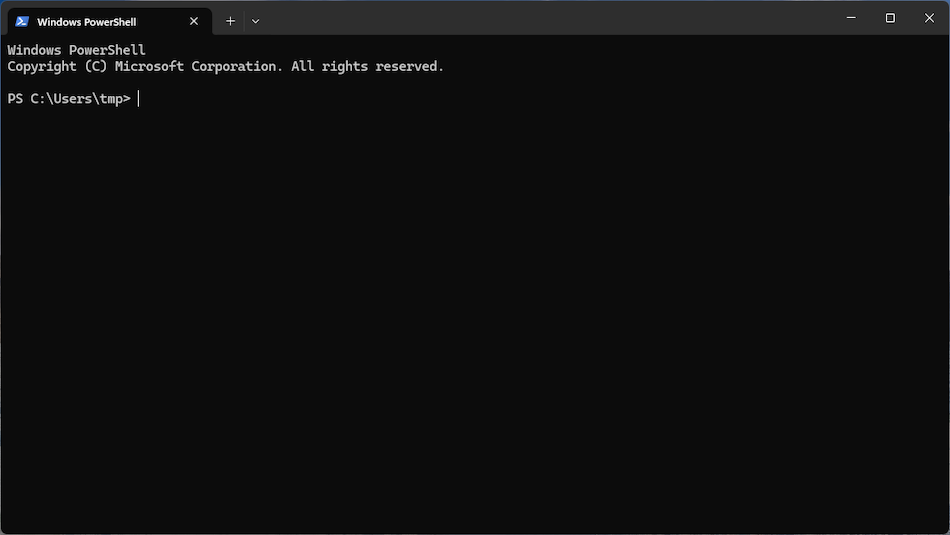
You are sitting in front of a blue terminal window needing to restart a stuck service, clear out log files, or pull system details from a remote server, but the exact syntax slips your mind. Was it Get-Service or Get-Process? Did the output require filtering with Where-Object or a specialized parameter? PowerShell is an immensely powerful command-line interface and scripting language, but its sheer depth means even experienced system administrators need a quick reference guide from time to time.
Unlike traditional Linux shells or the legacy Windows Command Prompt, PowerShell handles structured .NET objects rather than plain text strings. This design makes passing data between commands clean and reliable once you know the core patterns. Keep this cheat sheet handy to quickly look up syntax, aliases, and common operational patterns for administrative workflows.
Discovering Commands and Getting Help
PowerShell follows a strict Verb-Noun naming pattern (such as Get-Process or New-Item). When you know what action you want to perform but cannot remember the precise command name, PowerShell provides built-in discovery utilities.
- Get-Help: Retrieves documentation for any command. Adding the -Examples switch shows real-world code snippets, while -Detailed provides full parameter explanations.
Example:Get-Help Get-Process -Examples - Get-Command: Searches all installed modules for available cmdlets, functions, and aliases. You can filter by verb or noun using wildcards.
Example:Get-Command -Verb Get -Noun *Service* - Get-Member: Reveals the underlying properties and methods of an object passed down the pipeline. This is arguably the most essential debugging tool in PowerShell because it shows exact attribute names you can filter or export.
Example:Get-Process | Get-Member - Update-Help: Downloads the latest official documentation files from Microsoft directly to your local system for offline search access.
Example:Update-Help
If you are ever unsure what properties a cmdlet produces, piping the command output into Get-Member instantly opens up the object model so you know exactly which attributes to select or filter on.
Managing Files, Folders, and Paths
File system operations are a daily task for system administrators. While traditional aliases like ls, dir, cp, and rm work in PowerShell, relying on native cmdlets ensures your scripts remain consistent across operating systems including Linux and macOS.
Listing and Inspecting Files
To list items in a directory, use Get-ChildItem. You can recurse through subdirectories and filter by extension:
blockquote>
Get-ChildItem -Path C:\Logs -Recurse -Filter *.log
To verify whether a file or folder exists before running a script, Test-Path returns a simple true or false boolean value:
blockquote>
Test-Path -Path C:\Deployment\config.json
Creating, Copying, and Removing Items
Creating new files or directories requires New-Item, where you specify the item type explicitly:
- New-Item -ItemType Directory -Path C:\Backups\AppLogs
- New-Item -ItemType File -Path C:\Backups\AppLogs\audit.txt
To copy files across paths while preserving directory structures, use Copy-Item with the recursive parameter:
blockquote>
Copy-Item -Path C:\Source* -Destination D:\Archive\ -Recurse -Force
When deleting files, Remove-Item purges targeted items. Use -Force to remove hidden or read-only files without prompt confirmation:
blockquote>
Remove-Item -Path C:\Temp* -Recurse -Force
Managing System Processes and Services
Monitoring performance and managing background services are primary use cases for administrative automation. PowerShell provides real-time access to the local process and service tables.
Working with Processes
To inspect active processes, run Get-Process. You can filter by process name or pipe the result into sort commands to identify high-resource consumers:
blockquote>
Get-Process -Name “notepad”
To terminate an unresponsive process, use Stop-Process by passing either the process ID (PID) or process name:
blockquote>
Stop-Process -Id 4321 -Force
Controlling System Services
Managing Windows services requires tracking status attributes like Running or Stopped. You can check service states using Get-Service:
blockquote>
Get-Service -Name “wuauserv”
State changes are executed through dedicated lifecycle cmdlets:
- Start-Service -Name “Spooler”: Starts a stopped service.
- Stop-Service -Name “Spooler”: Gracefully stops a running service.
- Restart-Service -Name “Spooler”: Performs a stop-and-start cycle in a single command.
- Set-Service -Name “Spooler” -StartupType Automatic: Modifies the boot behavior settings for a target service.
Filtering, Sorting, and Pipeline Operations
The pipeline operator (|) passes output directly from one cmdlet to another. Because PowerShell transmits full objects rather than plain text, you do not need complex regular expressions or tools like awk or grep to parse results.
Filtering Objects with Where-Object
Use Where-Object to evaluate properties against comparison operators such as -eq (equals), -ne (not equals), -gt (greater than), -lt (less than), and -like (wildcard match).
To retrieve all stopped services that are set to automatic start:
blockquote>
Get-Service | Where-Object { $.Status -eq ‘Stopped’ -and $.StartType -eq ‘Automatic’ }
Selecting and Sorting Output
By default, cmdlets return standard default views. You can isolate specific properties using Select-Object or re-order output using Sort-Object.
- Sort-Object: Sorts items by property values.
Example:Get-Process | Sort-Object -Property CPU -Descending - Select-Object: Limits attributes displayed or restricts the result set length using -First or -Last.
Example:Get-Process | Sort-Object WorkingSet64 -Descending | Select-Object -First 5 Name, ID, WorkingSet64
Processing Collections with ForEach-Object
When you need to execute custom logic against every individual item passed through the pipeline, ForEach-Object iterates over each object using the special current-item variable $_:
blockquote>
Get-Service -Name “vss*” | ForEach-Object { Restart-Service -Name $_.Name -Verbose }
Networking and Remote Management
PowerShell offers deep network diagnostics alongside remote administration capabilities built on WinRM (Windows Remote Management) and SSH.
Network Connectivity Cmdlets
Replace legacy diagnostic tools with structured native cmdlets:
- Test-Connection: Acts as an enhanced ping tool returning structured response packets.
Example:Test-Connection -ComputerName "192.168.1.1" -Count 2 - Test-NetConnection: Tests specific TCP ports to verify firewall configurations and network service availability.
Example:Test-NetConnection -ComputerName "Server01" -Port 443 - Invoke-WebRequest: Downloads files or fetches raw HTTP responses from web endpoints.
Example:Invoke-WebRequest -Uri "https://example.com/file.zip" -OutFile "C:\Downloads\file.zip" - Invoke-RestMethod: Queries REST APIs and automatically parses JSON or XML responses directly into native PowerShell objects.
Example:Invoke-RestMethod -Uri "https://api.github.com/repos/PowerShell/PowerShell/releases/latest"
Executing Commands Remotely
To open an interactive session with a remote host, use Enter-PSSession:
blockquote>
Enter-PSSession -ComputerName “Server01” -Credential (Get-Credential)
If you need to run a batch script across multiple endpoints simultaneously, Invoke-Command accepts script blocks and target host arrays:
blockquote>
Invoke-Command -ComputerName “Server01”, “Server02” -ScriptBlock { Get-Service -Name “Spooler” }
Exporting, Importing, and Formatting Data
Once you gather administrative telemetry, you will often need to format and store it for reporting or downstream automation tasks.
Formatting Display Views
PowerShell provides display-formatting tools like Format-Table and Format-List. Important: Use format cmdlets only at the absolute end of your pipeline command, as they convert raw objects into layout streams which break further object manipulation.
- Format-Table -AutoSize: Adjusts column widths based on content fit.
- Format-List: Displays every property on its own line, ideal for deep object inspection.
Exporting Structured Data
Convert pipeline objects directly into flat files or common structured formats:
- Export-Csv: Writes object attributes directly to CSV files without manual string manipulation.
Example:Get-Process | Select-Object Name, ID, CPU | Export-Csv -Path "C:\Reports\processes.csv" -NoTypeInformation - ConvertTo-Json / ConvertFrom-Json: Converts PowerShell objects to JSON text strings and back.
Example:Get-Service | Select-Object Name, Status | ConvertTo-Json | Out-File "C:\Reports\services.json" - Out-File: Writes text output to plain text files, serving as a functional replacement for standard output redirection.
Example:"System scan completed successfully" | Out-File -FilePath "C:\Logs\scan.log" -Append
Practical Administrative One-Liners
Putting these fundamental concepts together allows you to build compact, effective commands for daily maintenance operations.
Find the 10 Largest Files on a Drive: blockquote>
Get-ChildItem -Path C:\ -Recurse -File -ErrorAction SilentlyContinue | Sort-Object Length -Descending | Select-Object -First 10 FullName, @{Name=”SizeGB”;Expression={$_.Length / 1GB}}
Export All Stopped Automatic Services to CSV: blockquote>
Get-Service | Where-Object { $_.Status -eq ‘Stopped’ -and $_.StartType -eq ‘Automatic’ } | Select-Object DisplayName, Name | Export-Csv -Path “C:\Reports\StoppedServices.csv” -NoTypeInformation
Mastering these core cmdlets provides a solid foundation for managing Windows and cross-platform systems efficiently. Keep these syntax patterns nearby, build upon the object pipeline, and use the interactive discovery commands whenever you encounter new administration modules.