The simplest route to a local Windows chatbot is LM Studio: a desktop application that downloads compatible models and runs them on your computer. This guide uses its graphical interface, so you do not need Python, a terminal, or a cloud API account.
Offline means offline after preparation. You need internet access to obtain the installer, model weights, and any required inference runtime. Once those components are installed and tested, ordinary local conversations can run without a connection. Web searches, cloud integrations, and additional downloads cannot.
What You Need Before Starting
- A supported Windows PC: Check LM Studio’s current Windows requirements before downloading. Windows 11 on a modern x64 processor is a straightforward starting point; older processors or other architectures may need a different supported build.
- Enough memory: Aim for at least 16 GB of system RAM for a comfortable first attempt with a small quantized model. A 32 GB machine offers more room for larger models and longer conversations. These are planning recommendations, not guarantees.
- Available storage: Allow approximately 15–25 GB for the application, runtime, and one starter model, with extra space for downloads and additional models. Check the actual model file size before proceeding.
- An optional supported GPU: A discrete GPU can improve speed, but CPU-only inference is possible. Dedicated GPU memory, or VRAM, is separate from system RAM.
- Internet access during preparation: Model downloads can be several gigabytes. If the target PC must never connect, you will need another computer and a USB drive to transfer all required components.
- Installation permission and power: Use an account allowed to install software, and connect a laptop to its charger.
- Time: Reserve roughly an hour for installation and testing, plus download time. A slow connection can make the download substantially longer.
Start smaller than your hardware limit. A responsive 7B or 8B instruction-tuned model is usually a better first setup than a larger model that constantly runs out of memory.
Install and Prepare the Model
- Download the Windows installer from LM Studio’s official website. Choose the build supported by your computer. The result should be an installer saved in your Downloads folder. Avoid third-party download sites and installers advertised as “unlocked” or “premium” versions.
- Install LM Studio. Follow the installer’s prompts using the standard installation options unless you have a specific reason to change them. You should finish with an application shortcut. If Windows blocks installation because of organizational policy, ask your administrator rather than disabling security protections.
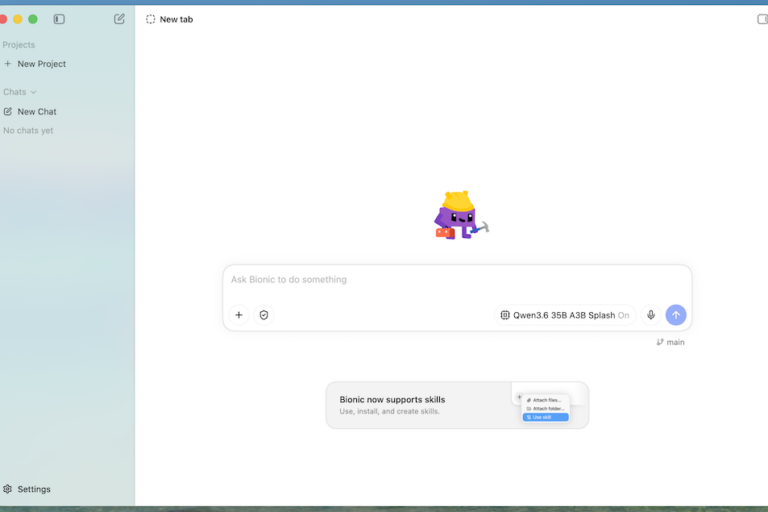
- Open LM Studio. You should see its chat interface and navigation for model discovery, downloaded models, or developer tools. Names and positions can change between releases; look for the function described rather than expecting every button label to match this guide.
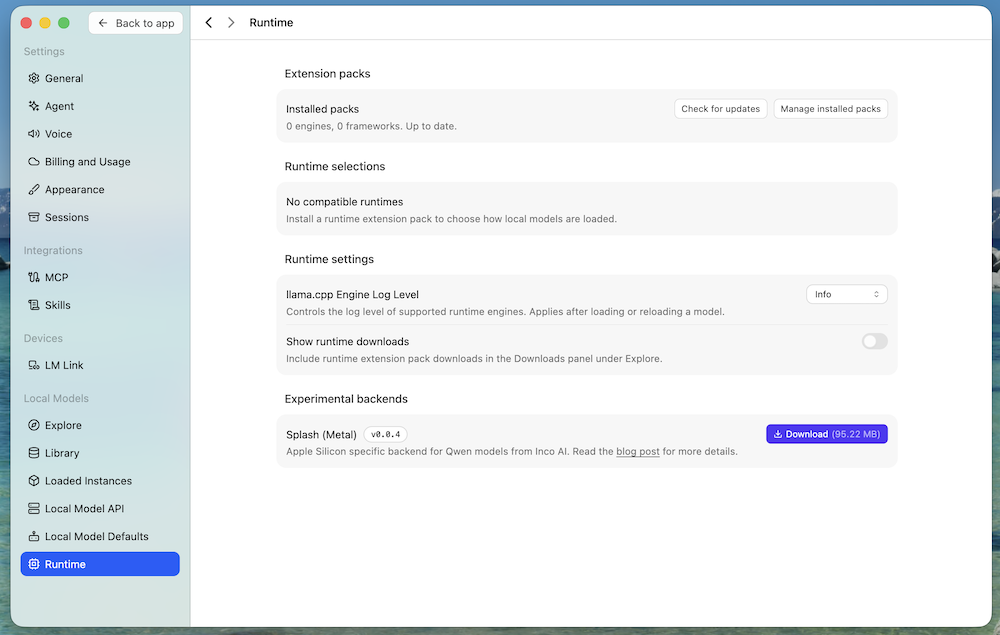
- Install any required inference runtime. Use the application’s runtime-management interface or follow its first-run prompts while you are still online. A runtime is the engine that executes the model. You should have a compatible runtime available locally; downloading model weights alone does not guarantee that inference will work offline.
- Select a compatible starter model in the model browser. Look for an instruction-tuned model, typically labeled Instruct or Chat, in the GGUF format supported by your installed runtime. A 7B or 8B model with Q4_K_M quantization is a practical starting point for many 16 GB PCs. On tighter hardware, choose a smaller model. Confirm runtime compatibility and read the model’s license, especially for business use.
- Download the selected model file. Choose one suitable quantized variant rather than every file in the repository. Wait until the application reports that the download is complete and lists the model locally. If storage is running low, fix that now; an incomplete download cannot become an offline model.
Understand the Labels Before Going Bigger
7B, 8B, and 14B refer approximately to parameter counts, not download sizes. More parameters can improve capability, but also increase memory requirements and processing time. Architecture, training quality, and suitability for your task matter too.
Q4_K_M is a quantization option that reduces weight-storage requirements compared with higher-precision versions. It is a useful starting compromise, not a promise that every model will fit. Runtime buffers and conversation context require additional memory.
Context length controls how much text the model can consider at once. A model advertising a very large context window does not mean your PC can comfortably use that entire window.
Load and Tune the Model
- Set an initial context length of 4,096 tokens in the model’s load settings. If available, use a lower value on a memory-constrained PC. You should see the selected value before loading. Avoid starting at the model’s maximum context: that can consume substantial memory before you send a message.
- Choose the GPU-offload setting. Use the application’s automatic or recommended setting initially. On a CPU-only machine, use CPU inference. Offloading places some or all model layers on the GPU; it does not give your graphics card unlimited memory. The settings should show a supported backend without a hardware error.
- Load the downloaded model into the chat interface. Loading is separate from downloading. Wait for a ready status or an enabled message box. If loading fails with an out-of-memory error, reduce GPU offload for a VRAM problem, reduce context length, or select a smaller model. Retry before moving on.
- Send a short test prompt. Try: “Explain the difference between RAM and SSD storage in three sentences.” You should receive a coherent answer within the chat window. Slow output on a CPU is not necessarily a fault, but repeated errors or no generated text mean the setup needs attention before the offline test.
- Adjust one performance setting if the first response is impractically slow. Increase GPU offload only when supported and memory allows, or choose a smaller model if you are CPU-bound. Compare results using the same short prompt. Change one variable at a time so you can identify what helped; loading successfully is more important than maximizing every setting.
For a larger model, repeat the same checks rather than relying on parameter count alone. A partially GPU-offloaded model may fit across VRAM and system RAM but run much slower than one that fits entirely on the GPU.
Prove That It Works Offline
- Disconnect the computer from the internet. Disable Wi-Fi and unplug Ethernet, or use Windows airplane mode where appropriate. Verify that no other connection remains active. The result should be a genuinely disconnected PC, not simply a closed browser.
- Close LM Studio completely. Exit the application, including any background or tray instance if present. This clears the already-running session so your test checks more than a model that happened to be loaded while online.
- Reopen LM Studio while disconnected. The application should launch without requiring online authentication for local inference. Discovery pages or update checks may fail offline; that is different from the local chat engine failing.
- Load your downloaded model again. Select it from the local model list, not the online search results. It should reach its ready state without requesting another download. A missing runtime or unsupported model format must be resolved during preparation, not bypassed with a cloud fallback.
- Send a new offline test prompt. Try: “Create a five-item checklist for organizing a home office.” A fresh answer generated while disconnected confirms that this model is running locally. It does not prove that every optional application feature works offline.
Keep the Setup Useful and Private
Keep network-dependent features out of your offline workflow. Browser tools, remote model providers, external connectors, and plugins may transmit information or fail without internet access. Local inference itself does not require those features.
If you enable LM Studio’s optional local API server for another application, bind it to localhost or 127.0.0.1 for same-PC use. Do not enable network-wide access or open firewall ports unless you understand authentication and exposure. A local server does not automatically make every connected client private.
Check where conversations and model files are stored. Local processing avoids sending prompts to a hosted model, but saved chats can still be exposed through shared Windows accounts, cloud-synced folders, backups, or malware. Use appropriate Windows account permissions and disk encryption for sensitive work.
Keep a record of the working application version, runtime, model filename, quantization, context length, and offload setting. Retain installers and a backup of the model if you need to reproduce the setup later. Fully air-gapped deployment may require additional runtime files; verify the transferred installation on the isolated PC before relying on it.
Final Steps
Your setup is complete when you can launch the application, load the model, and generate a fresh answer with every internet connection disabled. It should run without memory errors and at a speed you can tolerate. You now have an offline assistant for drafting, summarizing supplied text, brainstorming, and other tasks within the model’s abilities. Verify important answers: local models can invent facts, and they cannot know current events or inspect files you have not provided.