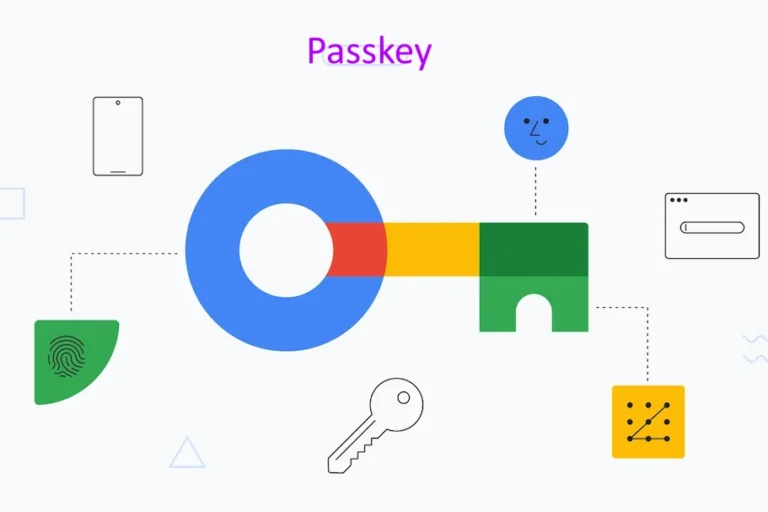
A passkey lets you sign in without typing a password. You usually approve the sign-in with your device’s fingerprint reader, face recognition, screen-lock PIN, or a physical security key. Behind that familiar action is a cryptographic credential designed to resist phishing and password theft.
The important distinction is that your fingerprint or face is not your passkey. Biometrics normally unlock permission to use the credential on your device; the website does not receive your biometric data. Depending on the device, a PIN or another supported verification method can do the same job.
Passkeys versus passwords
A password is a shared secret: you know it, and a service checks it. Attackers can steal it, trick you into revealing it, or try it on other websites. A passkey uses a public-private key pair. The service stores the public key, while your device or credential provider protects the private key.
Unlike an SMS code or authenticator code, a passkey is tied to the service’s identity. A fake website cannot ordinarily use your passkey for the real website, even if its logo and login page look convincing.
A password manager remains useful. Not every service supports passkeys, and many managers now store both passwords and passkeys. Going passwordless is usually a gradual migration, not a reason to delete every password immediately.
Passkeys substantially improve login security, but they do not secure every part of your digital life. You still need protected devices, reliable recovery, sensible account permissions, and caution around scams. A useful goal is to remove reusable passwords wherever practical while strengthening the accounts that control everything else.
How Passkeys Work
When you create a passkey, your device or credential provider generates a key pair and registers the public key with the service. When you sign in, the service sends a fresh challenge. After you approve, your passkey signs a response, and the service checks it.
The signature is valid for that challenge, rather than being a reusable secret someone can copy into another login screen. The browser and authenticator also enforce rules connecting the credential to the legitimate service.
Passkeys build on standards including WebAuthn and FIDO2. A service can sometimes share credentials across its own subdomains under the appropriate relying-party identifier, but an unrelated lookalike domain cannot simply request the same passkey.
Why phishing resistance matters
Traditional multifactor authentication can still be phished. A convincing fake login page may relay your password and one-time code to the genuine site in real time. Passkeys resist that attack because authentication is bound to the legitimate service, not just to information you type.
This also reduces credential-stuffing risk: a passkey from one service is not a password attackers can try elsewhere. A leak of a service’s public-key records does not, by itself, give attackers usable private keys.
What passkeys do not prevent
- Session theft: malware can steal an already-authenticated browser session without needing your passkey.
- Recovery abuse: a weak password-reset or account-recovery route may bypass stronger authentication.
- Device compromise: an attacker controlling your unlocked device may act through your accounts.
- Authorization scams: you can still be tricked into approving a payment, granting app access, or sharing sensitive information.
Passkeys protect authentication. Updates, device locks, recovery security, and careful approval decisions protect the surrounding system.
Choose Where Your Passkeys Will Live
Synced passkeys: convenient across devices
Synced passkeys are managed by a provider that makes them available on other supported devices. Examples include Apple’s credential ecosystem, Google Password Manager, and third-party password managers with passkey support.
Synchronization can make replacing a phone straightforward, provided you can regain access to the provider and satisfy its recovery requirements. Providers use different encryption and recovery designs, so check the documentation rather than assuming all services work identically.
The main trade-off is dependency: your credential provider becomes critical infrastructure. Protect its account carefully and understand what happens if you lose every trusted device.
Device-bound passkeys: stronger separation, more deliberate backup
A device-bound passkey stays on the authenticator where it was created. Hardware security keys commonly work this way, and some device-based implementations do too. They are useful when you want credentials that do not synchronize through a cloud account.
A hardware key may require a touch and, depending on the sign-in requirements, a PIN or biometric verification. Check whether your services support your chosen key and whether your devices have the necessary USB or NFC connectivity.
Register a second key where supported. You generally cannot copy a private key off a hardware authenticator later. A spare helps only if you registered it with the account before losing the first one.
Choose for portability, not just convenience
Before committing, check:
- Support for every operating system, browser, and mobile device you use.
- Whether passkeys work inside your essential apps as well as websites.
- How synchronization, recovery, and device removal work.
- Whether passkeys can be transferred to another provider through a supported migration process.
- Whether an employer’s device policies restrict personal credential providers.
Passkey portability is evolving. Do not assume a password export also exports passkeys, or that transferring them works between every pair of providers. Keep the old setup until you have tested the replacement.
Start with accounts that can unlock other accounts
Your primary email account, credential provider, and major platform accounts deserve attention first. Anyone controlling your email may be able to reset passwords elsewhere. Your Apple, Google, or Microsoft account may also control devices, cloud data, or access to credentials.
For each root account, review registered devices, recovery addresses, phone numbers, security keys, and recent activity. Remove unfamiliar access and obsolete recovery details. Where supported, register more than one strong authentication method.
Look for circular dependencies. If recovering your credential provider requires email access, but your only email credential lives inside that provider, losing all devices could leave you stuck. An independently stored recovery code or separately registered hardware key may break that loop.
Harden the devices that use your passkeys
Install operating-system and browser updates, enable automatic screen locking, and use a strong device passcode. Biometrics are convenient, but the fallback passcode matters because it may unlock the device or authorize credential access.
Enable device encryption where it is not already automatic. Set up remote location and erasure features, and learn how to use them before you lose a device. Avoid storing personal passkeys on shared computers or devices you do not control.
Build a realistic account inventory
You do not need to catalogue every newsletter subscription. Start with accounts whose compromise would cause financial loss, identity exposure, or loss of access:
- Primary and recovery email accounts.
- Credential providers and platform accounts.
- Banking, payments, investments, and shopping accounts.
- Mobile carrier, government, healthcare, and insurance accounts.
- Work, social media, cloud storage, and domain registrar accounts.
Record which support passkeys, which retain passwords, and which have tested recovery routes. This turns an overwhelming cleanup into a manageable plan.
Set Up Passkeys and Verify They Actually Work
Create your first passkey from the legitimate service
- Open the service directly. Use its official app, a trusted bookmark, or a carefully checked address—not an unexpected “security upgrade” link.
- Find security settings. Look for “Passkeys,” “Sign-in methods,” “Security keys,” or “Passwordless.” Terminology varies.
- Choose where to save the credential. Confirm whether the prompt names your device, your credential provider, or a hardware key.
- Approve creation. Use the requested biometric, device PIN, or security-key action.
- Name it clearly. If the service allows labels, use something recognizable, such as “Personal manager” or “Spare hardware key.”
A credential saved to the wrong provider may still work, but it can complicate recovery and migration. Read the creation prompt before accepting it.
Test before removing anything
Sign out, then sign in with the new passkey. Test your main browser, phone, and any essential app. If you rely on a second computer, test that too.
Next, register an independent backup method where possible. A second synced device may improve availability, but if both depend on the same provider account, they are not fully independent recovery paths.
Only then consider disabling the password or reducing weaker fallbacks. Some services merely add passkeys alongside an existing password; others support genuinely passwordless accounts. Read the account’s actual settings rather than assuming passkey enrollment removed the password.
Keep unsupported accounts strong
For services without passkeys, use unique, randomly generated passwords in a reputable password manager. Add the strongest supported multifactor method. Phishing-resistant security-key authentication is preferable where available; authenticator codes are generally preferable to SMS.
A security key used as a second factor is not necessarily a passwordless passkey login. Both can be valuable, but check which flow the service supports.
Synchronization and phone-assisted sign-in are different
With synchronization, a credential becomes available through your provider on another supported device. With phone-assisted sign-in, the passkey can remain on your phone while you authenticate to a website on a computer.
The second approach often displays a QR code. You scan it with your phone, confirm the service and account, and approve the sign-in. These flows commonly use Bluetooth to establish physical proximity alongside other communications, so both devices may need Bluetooth enabled and internet access.
The process normally does not copy your passkey onto the computer. However, it does create a signed-in session there.
Be careful with shared computers
Phone-assisted sign-in is safer than typing a reusable password into an unfamiliar computer, but it does not make that computer trustworthy. Malware can still observe your activity or steal the resulting session.
Avoid sensitive accounts on public machines when possible. If you must use one, do not save credentials, decline persistent sign-in, sign out afterward, and review account sessions from a trusted device. Private browsing reduces some local traces but does not neutralize malware.
Approve the action, not just the prompt
Scan sign-in QR codes only when you intentionally started a login on a device you trust. Check the service and account displayed on your phone. Do not scan a code sent by a stranger or “support agent” who claims it will repair your account.
If the workflow is unfamiliar, cancel and restart from the official service. Phishing resistance is not a reason to approve unexpected requests.
Design recovery before an emergency
A good recovery plan survives the loss of your everyday phone and computer. Depending on the service, that might mean a registered spare hardware key, recovery codes, a trusted recovery contact, or access to your synced credentials through a documented provider recovery process.
Keep recovery codes somewhere protected but reachable without the account they recover. An encrypted offline record or a securely stored paper copy can work. Codes stored only in a locked-out credential manager cannot rescue access to that manager.
Document which account each backup belongs to. Recovery codes are usually highly sensitive and may be single-use; replace or regenerate them after use as the service directs.
What to do when a device is lost or stolen
- Use a trusted device to activate lost-device protections or remote erasure where appropriate.
- Review and revoke sessions associated with the missing device.
- Remove the device from relevant platform and credential-provider accounts.
- Review registered passkeys and revoke affected credentials where needed.
- Check recent activity, recovery changes, and connected applications.
Remote erasure may depend on the device reconnecting. Revoking a passkey also does not necessarily terminate existing sessions, so check both controls.
For synced passkeys, distinguish between removing a device’s access to the provider and deleting a credential at the website. Deleting a synchronized credential can affect other devices too; understand the scope before making changes.
Plan for incapacity and family needs
For essential household accounts, consider documented emergency-access or legacy-contact features. Keep instructions current, but do not casually share recovery secrets. Where a service offers delegated access, that is usually cleaner than having several people use one account.
Test recovery assumptions safely: confirm your spare key works and locate your offline records without deleting working access or repeatedly triggering account recovery.
Troubleshoot Problems
When a passkey does not appear
Check that you are using the correct account, device profile, and credential provider. A passkey created in one manager will not automatically appear in another. Work and personal browser profiles can also use different credential stores.
Update your browser, operating system, and manager app or extension. Confirm that the provider is enabled for credential autofill where required. Try the service’s explicit “Use a passkey” option instead of expecting an automatic suggestion.
If phone-assisted sign-in fails, check Bluetooth, connectivity, camera permissions, and device proximity. If an app fails while the official website works, the app may have different implementation support.
Changing phones, providers, or operating systems
Do not erase your old device first. Set up the new one, restore or transfer credentials through supported methods, and test important accounts. If credentials cannot move, sign in using the old setup and register new passkeys individually.
Maintain overlap until the replacement works. Then revoke obsolete device-bound credentials, sign out old devices, and remove outdated access. Selling a device should include the manufacturer’s proper reset procedure, not just deleting a few apps.
When recovery fails
Use the service’s official recovery process. Do not pay strangers who promise to “unlock” passkeys or bypass cryptography. Legitimate support may verify account ownership, but nobody needs your device PIN, recovery codes, or remote control of your computer just to explain the process.
Some services cannot restore access without an enrolled credential or valid recovery method. That possibility is why backup registration matters more than a reassuring assumption that support can always help.
Maintain a Passwordless Security System
Reduce weak alternatives without sacrificing recovery
An account’s security depends partly on its easiest available takeover route. If a passkey-protected account still accepts a reused password and SMS reset, attackers may target those alternatives.
Where supported, disable unnecessary weak login methods after testing stronger recovery. Where a password must remain, make it unique and random. Protect carrier accounts against unauthorized changes, and keep recovery email accounts at least as secure as the accounts they recover.
A memorable username or separate email alias can help organize accounts, but neither replaces strong authentication.
For higher-risk people and workplace deployments
People facing targeted attacks may prefer independently registered hardware keys, tighter recovery settings, and fewer cloud dependencies. The right choice depends on the threat: physical loss, targeted phishing, device compromise, and provider-account takeover require different safeguards.
Organizations should pilot passkeys across real devices and applications before broad rollout. Plan enrollment, lost-key replacement, contractor access, help-desk identity verification, and offboarding. Administrators may also need authenticator restrictions or attestation policies; availability and privacy implications vary.
Passkeys do not replace endpoint security, session controls, or least-privilege access. A phishing-resistant login is one layer, not an entire enterprise security program.