Nearly everyone carries a camera capable of taking genuinely impressive photos, whether it’s a dedicated digital camera or the one built into a smartphone or tablet. We share these photos constantly, dropping them into group chats, social feeds, and cloud albums without a second thought. What most people never stop to consider is that every one of those image files is quietly carrying a passenger: a block of hidden data called EXIF metadata.
EXIF metadata can record the make and model of the camera or phone that took the shot, the exact settings used (aperture, shutter speed, ISO, and so on), and the software used to edit it afterward. On many smartphones and some modern cameras, it can also include GPS coordinates, especially when location services are switched on. That means a photo you post publicly could reveal precisely where you were standing when you took it, whether that’s your front porch, your child’s school, or your hotel room on vacation.
What EXIF Metadata Actually Contains
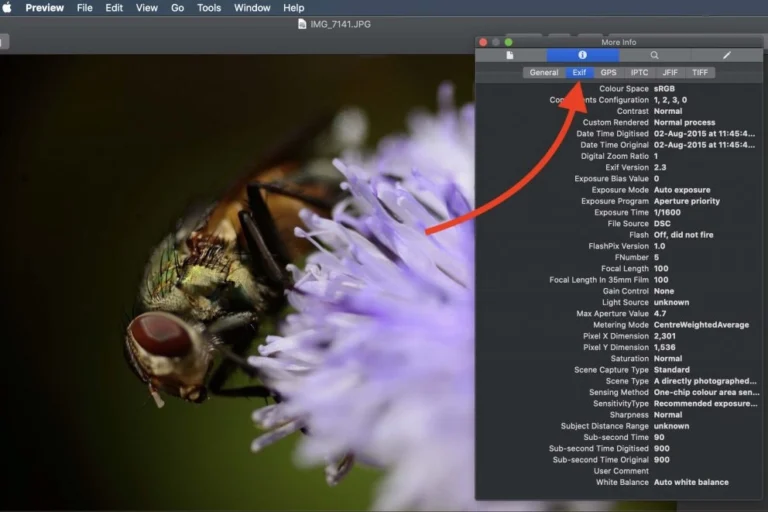
EXIF stands for Exchangeable Image File Format. It’s a standard that specifies how images, sound, and related tags are stored by digital cameras, smartphones, scanners, and similar devices, with the data embedded directly inside the image file itself. Depending on the device and settings, an EXIF block can include:
- Camera or phone manufacturer, model, and sometimes serial number
- Aperture, shutter speed, ISO, focal length, and flash settings
- Date and time the photo was taken
- Editing software used and version numbers
- GPS coordinates, if location services were enabled at the time
None of this is inherently sinister. Photographers often rely on EXIF data to review their own settings and improve their technique. The problem shows up when photos are shared publicly and that same information travels along with them, unnoticed, to anyone who bothers to look.
Why This Matters for Your Privacy
The geographic coordinates are the part worth paying closest attention to. If GPS data is embedded in a photo you upload to a personal blog, a forum, or anywhere that doesn’t automatically process the file, someone could extract those coordinates and pinpoint exactly where the picture was taken. Large social networks generally strip metadata during upload, but it’s not something worth assuming applies everywhere, and it’s not something you should rely on for photos you email, message, or upload to a personal website. The safer habit is to strip sensitive metadata yourself, from a copy of the file, before you share it anywhere.
How to View EXIF Data on Your Photos
Before removing anything, it helps to see what’s actually in your files. On Windows, right-click an image, choose Properties, and open the Details tab, or simply select a file in File Explorer and check the details pane. Both will show you camera information, dates, and any GPS data attached to the file.
For a closer look, or for photos that come from an operating system other than Windows, you have several options:
- Jeffrey’s EXIF Viewer, a well-known browser-based tool for inspecting metadata without installing anything
- FastStone Image Viewer, a free Windows viewer that also shows metadata alongside your photos
- IrfanView, another long-running free viewer with metadata display built in
- ExifTool, a command-line utility that can read and write metadata across a huge range of image formats, including JPEG and HEIC
Worth noting: older recommendations for this job, like Google Picasa and Windows Live Photo Gallery, have both been discontinued for years. If you come across a guide suggesting either one, skip it and use one of the actively maintained tools above instead.
How to Remove EXIF Metadata for Free
The Built-in Windows Method
You don’t need any extra software to strip basic metadata on Windows. Select the images you want to clean, right-click, and choose Properties. Under the Details tab, click Remove Properties and Personal Information. Windows will offer to create a cleaned copy of the file rather than altering the original, which is the safer route. Once it’s done, open the copy and check the Details tab again to confirm the fields you wanted gone are actually gone, particularly GPS data, before you share it.
Photo Viewers That Double as Metadata Strippers
If you’re already using a free photo viewer, there’s a good chance it can also remove metadata:
- FastStone Image Viewer lets you strip EXIF and IPTC data right from its save options.
- IrfanView can remove metadata through its Save As or Batch Conversion/Rename options under the File menu. Just make sure the options that preserve EXIF, IPTC, or XMP data are unchecked before saving.
- DropIt is a lightweight tool that can be set up to strip EXIF data automatically as part of a batch workflow, useful if you regularly process a lot of images at once.
Dedicated Metadata-Removal Tools
If you’d rather use something built specifically for this job, a few free utilities are worth knowing about:
- MetaStripper is a simple, dedicated application for removing EXIF, COM, and IPTC tags from JPEG files, with batch processing built in.
- BatchPurifier LITE is the free edition of BatchPurifier, aimed at stripping metadata from JPEGs in bulk.
- EXIF Eraser is a small, free utility for deleting EXIF, IPTC, and XMP information from image files.
- QuickFix is another small free utility some people use for the same job.
A word of caution about these smaller, older utilities: some haven’t been updated in a long time, and a couple of the sites that used to hostthem have gone offline entirely. Before you trust any of them with a folder of personal photos, take a minute to check that the download link is still live and that the tool has seen updates recently. If in doubt, stick with the better-known options above, or use ExifTool, which is actively maintained and handles the same job with more consistency.
Tools for Photographers Who Shoot in Bulk
If you’re a working photographer sorting through hundreds or thousands of images, a one-by-one approach isn’t realistic. This is where dedicated metadata editors earn their keep.
GeoSetter is a free Windows tool built specifically for viewing and editing geo data alongside other IPTC, XMP, and EXIF fields. It’s a capable option for batch-editing location data and stripping fields you don’t want attached to a file. It’s worth knowing that development has slowed considerably over the years, with only occasional updates, and its built-in mapping view has carried a watermark since Google changed its mapping API terms. It still runs fine on current versions of Windows, but if you want something under more active development, it’s worth looking at newer geotagging tools that have appeared since, several of which also support Mac.
ExifTool is worth a second mention here, because for bulk work it’s hard to beat. It runs from the command line, supports an enormous range of formats, and can be scripted to strip specific fields, entire metadata blocks, or just GPS coordinates while leaving camera and exposure details intact. It has no cost, works across Windows, Mac, and Linux, and is one of the more actively maintained tools in this space.
For photographers who want a graphical interface rather than the command line, paid tools such as ExifCleaner from SuperUtils let you load individual images or entire folders and choose exactly what gets wiped. This selective approach matters if you want to keep camera model and exposure information attached to your portfolio images while still removing personal details like GPS coordinates. Since pricing on tools like this tends to change, check the vendor’s site directly rather than relying on older published figures.
A Few Practical Habits Worth Adopting
- Always strip metadata from a copy of the file, never the only copy you have, in case you want the original data later for your own records.
- Don’t assume a social network or messaging app has stripped everything for you. Check a sample upload yourself if privacy matters to you.
- If you’re a professional who wants to keep exposure settings visible while removing location data, look for tools that let you select which fields to remove rather than wiping everything at once.
- Before installing any small, single-purpose utility, do a quick check that it’s still maintained and that the download source is legitimate.
I want to mention an app that use to view EXIF data. EXIF Viewer by Fluntro is a pioneering photography app designed exclusively for iPhone and iPad users. With its intuitive interface and powerful functionalities, it has revolutionized the way photographers and enthusiasts engage with their images. This comprehensive tool allows users to delve deep into the metadata of their photographs, uncovering a wealth of information that enhances their photography experience.
Removing EXIF metadata takes a couple of minutes once you know where to look, and it’s a habit worth building into your normal routine for sharing photos, not just something you do once after reading an article like this one. Many major social media platforms strip most metadata during upload, but this isn’t guaranteed everywhere, and it doesn’t apply to photos sent through email, messaging apps, or personal websites. It’s safer to remove sensitive fields yourself before sharing rather than assume a platform will do it for you. Tools like ExifTool, GeoSetter, and paid options such as ExifCleaner let you choose specific fields to remove, so you can strip location data while keeping camera model and exposure settings intact if you want that information preserved.