
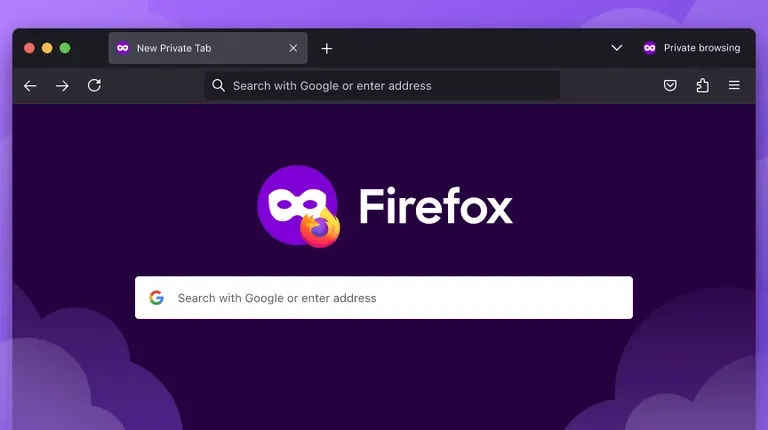
Private browsing mode—also called incognito mode in Chrome or private windows in Firefox—creates a temporary session that doesn’t save your browsing history, cookies, or cached files. But here’s what many people don’t realize: using private browsing isn’t the same as deleting private browsing history. Even in private mode, traces of your activity can linger on your device, your network, or your internet service provider’s records.
When you close a private browsing window, most browsers automatically delete the session data from your device. However, this doesn’t protect you from:
- Your internet service provider (ISP) logging your activity
- Websites and advertisers tracking you through cookies and fingerprinting
- Network administrators seeing your traffic (if you’re on a work or school network)
- Malware or spyware capturing your activity
- Accidental data recovery if your device is seized or compromised
Understanding these gaps is the first step toward taking real control of your digital privacy.
What Gets Stored
Private browsing mode prevents your browser from storing certain information locally:
- Browsing history: Sites you visit don’t appear in your history
- Form data: Passwords, usernames, and search queries aren’t saved
- Cookies: Tracking cookies are typically cleared when you close the window
- Cache: Temporary files downloaded from websites are deleted
What still gets stored includes:
- Downloads you save to your computer
- Bookmarks you create (in some browsers)
- Certificates and security credentials
- Entries in your device’s DNS cache
More importantly, private mode doesn’t hide your activity from external observers. Your ISP, the websites you visit, and anyone monitoring your network traffic can still see what you’re doing.
The ISP Problem
One of the biggest privacy blind spots is that private browsing doesn’t hide your activity from your ISP. Your internet service provider can see every website you visit, regardless of whether you’re in private mode or not. They can’t see the specific pages within encrypted sites (those starting with HTTPS), but they can see the domain names.
This is particularly concerning because ISPs have been known to sell anonymized browsing data to advertisers and data brokers. Some ISPs also inject ads into your browsing experience or throttle speeds based on your activity.
To protect yourself from ISP tracking, you’ll need to use a VPN (virtual private network). A VPN encrypts your traffic and routes it through a remote server, hiding your activity from your ISP. Choose a reputable VPN provider with a strong privacy policy and no-logging commitment.
Website Tracking
Websites track you in ways that bypass private browsing. Even in private mode, advertisers and analytics companies can identify you through:
- Fingerprinting: Combining details about your device (screen resolution, browser version, installed fonts) to create a unique identifier
- Cross-site tracking: Using pixels and scripts embedded across multiple sites to follow you around the web
- Login data: If you sign into a social media account or email during private browsing, that platform knows exactly who you are
To reduce tracking, use a browser with built-in privacy features. Firefox and Safari both offer enhanced tracking protection. You can also install privacy-focused extensions like uBlock Origin or Privacy Badger to block trackers and ads.
Clearing DNS Cache and Local Data
Even after you close a private browsing window, your device may retain evidence of where you’ve been. Your operating system maintains a DNS cache—a record of domain names you’ve looked up.
On Windows: Open Command Prompt as administrator and type ipconfig /flushdns
On Mac: Open Terminal and type sudo dscacheutil -flushcache (you’ll need to enter your password)
On Linux: The command varies by system, but sudo systemctl restart systemd-resolved works on many distributions
You should also manually clear cookies and cache from your browser periodically, even if you use private mode. Most browsers allow you to set this to happen automatically when you close them.
Protecting Downloads and Files
Private browsing doesn’t affect files you download. If you download something sensitive during a private session, it’s saved to your computer’s normal storage with a standard filename. Anyone with access to your device can find it.
If you’re downloading sensitive files:
- Save them to an encrypted folder or external drive
- Use a filename that doesn’t describe the content
- Delete the files securely using specialized software (standard deletion leaves data recoverable)
- Consider using a separate device or virtual machine for highly sensitive activities
Network and Device Monitoring
If you’re using a work or school network, administrators can see your traffic regardless of private browsing. Network monitoring tools capture data at the router level, before it ever reaches your browser.
Similarly, if your device has malware or spyware installed, private browsing won’t protect you. Malicious software can capture keystrokes, screenshots, and network traffic directly.
Protect yourself by:
- Keeping your operating system and software fully updated
- Using reputable antivirus software
- Avoiding suspicious downloads and links
- Using a firewall
- Avoiding public Wi-Fi for sensitive activities, or using a VPN if you must
Your Comprehensive Privacy Strategy
Private browsing is useful, but it’s just one tool. A real privacy strategy combines several approaches:
- Use a VPN: Encrypts your traffic and hides your IP address from websites and your ISP
- Choose privacy-focused browsers: Firefox, Brave, and DuckDuckGo’s browser prioritize privacy over tracking
- Enable HTTPS: Look for the padlock icon; it encrypts the content of your communication with websites
- Use strong, unique passwords: Prevents account takeovers that could expose your activity
- Enable two-factor authentication: Adds a layer of security to your accounts
- Review privacy settings: On social media and other platforms, limit what data is collected about you
- Consider a privacy-focused email provider: Services like ProtonMail encrypt your emails end-to-end
- Regularly clear cookies and cache: Even if your browser is set to do this automatically
The Bottom Line
Private browsing history deletion is important for keeping your local device clean, but it’s not a complete privacy solution. It prevents your browser from storing a record of where you’ve been, which is useful if you share a device or want to prevent someone with physical access from seeing your activity.
However, true privacy requires addressing the bigger picture: ISP tracking, website fingerprinting, network monitoring, and device security. By combining private browsing with a VPN, privacy-focused tools, and good security practices, you can significantly reduce your digital footprint and take real control of your online privacy.
Start with the easiest wins—enable private browsing by default, use a VPN, and review your privacy settings on major platforms. Then layer on additional protections based on your specific needs and threat model.