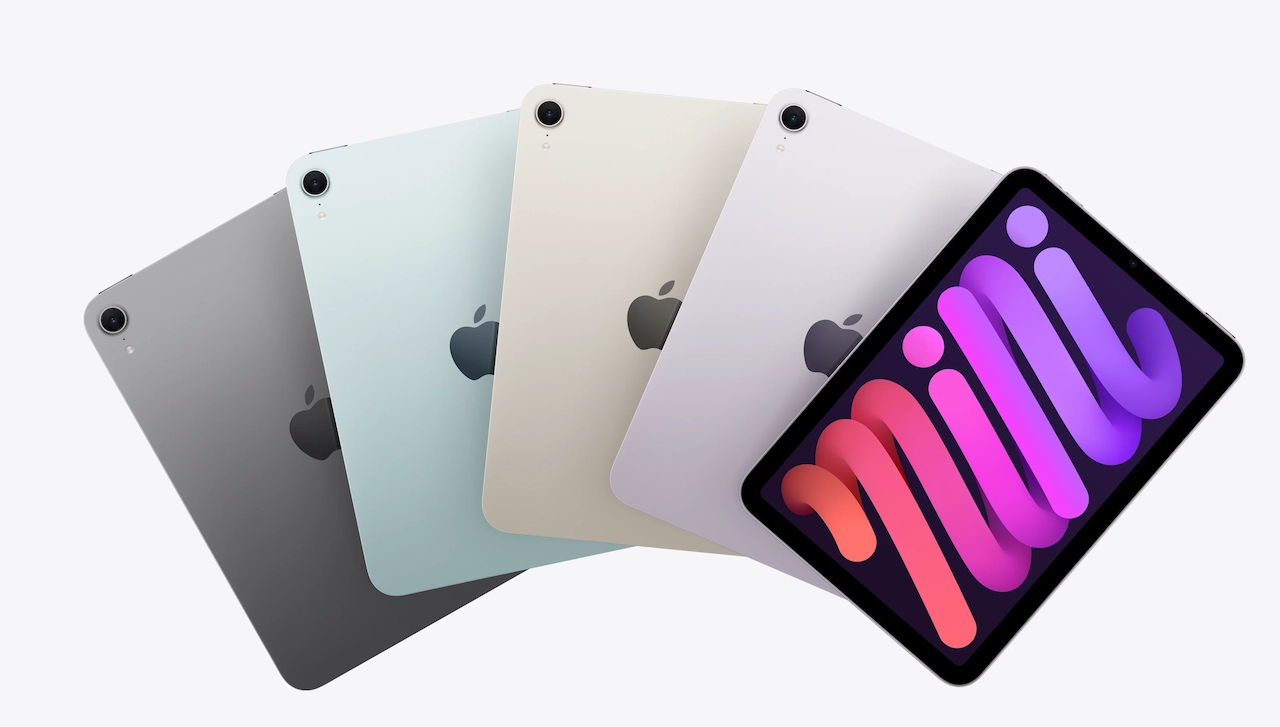
Buying an iPad used to be simple: pick a color, choose your storage, and head home. Today, Apple offers four distinct models across two processor families, multiple display technologies, and an accessory lineup with strict compatibility rules. Whether you want to replace an aging laptop, sketch digitally, or stream movies on the couch, understanding how these devices differ ensures you pay only for the features you actually use.
Current iPad Lineup
Apple organizes its tablets into four primary categories, ranging from entry-level utility to professional creative workstations:
- The Standard iPad: The 10th Generation iPad features a 10.9-inch Liquid Retina display and Apple’s A14 Bionic chip. It delivers core tablet features—reliable performance for daily apps, web browsing, and video calls—at the lineup’s most accessible price point.
- The iPad mini: Built for extreme portability, the mini packs modern performance into an 8.3-inch frame. Powered by an updated A-series processor, it suits field technicians, readers, and gamers who find full-sized tablets cumbersome.
- The iPad Air: Available in 11-inch and 13-inch sizes, the iPad Air bridges basic utility and professional power. Driven by desktop-class M-series silicon like the M2 chip, it offers high-speed multitasking, a laminated anti-reflective display, and support for high-end accessories.
- The iPad Pro: Apple’s top-tier tablet comes in 11-inch and 13-inch sizes powered by M4 silicon. It features Ultra Retina XDR displays with tandem OLED technology, Face ID, studio-quality microphones, and a LiDAR scanner for 3D mapping and AR work.
The hardware hierarchy comes down to processor power and display performance. Standard and mini models use mobile-focused A-series chips, while Air and Pro models share the M-series processors found in MacBooks. For screens, the base iPad uses an unlaminated 60Hz panel, whereas the iPad Pro uses ProMotion technology to scale refresh rates up to 120Hz for fluid scrolling and imperceptible stylus lag.
Find The Right iPad Model
Selecting the best model depends on how you spend your daily screen time.
Casual Web Browsing, Streaming, and Light Reading
If your routine centers on YouTube, Netflix, social media, FaceTime calls, and reading, the standard iPad provides ample performance. Its A-series chip handles media app multitasking easily, and the battery comfortably lasts through a full day of use. If one-handed reading matters more than display size, the iPad mini excels for e-books, portable note-taking, and mobile gaming.
Students and General Office Productivity
For high school or university students and office workers, the iPad Air strikes the best balance of price, speed, and hardware longevity. Its M-series chip ensures years of support for iPadOS updates and demanding productivity suites. When paired with a physical keyboard, it handles research papers, large slide decks, video calls, and split-screen workflows without slowing down.
Demanding Creative and Technical Workflows
The iPad Pro targets working professionals who rely on specialized hardware tools. Consider the Pro if your daily work includes:
- Color-grading and editing multi-stream 4K or 8K ProRes video in Final Cut Pro or DaVinci Resolve.
- Building and rendering complex 3D assets in Nomad Sculpt or Blender.
- Working with dozens of active layers on high-resolution canvases in Procreate.
- Using the LiDAR sensor for augmented reality development, interior design scans, or architectural site surveys.
Accessories That Expand Functionality
An iPad operates well as a standalone slate, but peripherals transform it into a laptop replacement or digital canvas.
Navigating Apple Pencil Options
Stylus compatibility requires careful checking, as Apple Pencils are not universally interchangeable across models:
- Apple Pencil (USB-C): An entry-level stylus offering pixel-perfect accuracy and magnetic attachment, charging via a sliding USB-C port rather than wireless inductive charging.
- Apple Pencil (2nd Generation): Compatible with previous-generation iPad Air and iPad Pro models, featuring magnetic pairing and wireless charging along the side of the tablet.
- Apple Pencil Pro: Designed for modern M-series iPad Air and iPad Pro models, adding haptic feedback, a squeeze gesture for quick tool palettes, and a gyroscope for barrel-roll brush control.
Keyboards and Input Devices
Apple’s Magic Keyboard offers a laptop-grade typing experience with a floating cantilever design, backlit keys, an integrated glass trackpad, and a passthrough USB-C charging port. For a budget-friendly alternative, Logitech’s Combo Touch series provides comfortable key travel, a built-in trackpad, and a detachable keyboard with a protective kickstand case.
Essential Everyday Extras
Digital artists and students often add a matte screen protector, such as Paperlike, to introduce subtle surface friction that mimics drawing on paper. Because iPads include only one USB-C port, a compact USB-C hub with HDMI output, SD card slots, and USB-A ports helps import camera files or connect to external displays and projectors.
Key iPadOS Features
iPadOS provides built-in tools designed to maximize screen space and streamline daily workflows.
Multitasking Systems
For side-by-side tasks, Split View pins two apps together—like a browser next to a document editor—while Slide Over floats a third app overhead for quick math or messaging. On M-series iPads, Stage Manager provides a windowed desktop layout that lets you resize, overlap, and group multiple active applications.
Built-In Productivity Accelerators
iPadOS includes practical tools integrated directly into the software:
- Quick Notes: Swiping up from the bottom-right corner with a finger or Apple Pencil opens a note that automatically links to the active app or website.
- Native Document Scanning: The Files and Notes apps feature built-in document scanning that corrects angles, adjusts contrast, and uses optical character recognition (OCR) to make text searchable.
- Scribble: Write directly into any standard text box with an Apple Pencil, and iPadOS instantly converts your handwriting into typed digital text.
External Monitor Workstations
When connected to an external display, M-series iPads running Stage Manager do more than mirror the screen. They drive a secondary workspace with up to four independent windows on the iPad and four on an external display up to 6K resolution, delivering full desktop-style multitasking.
Wi-Fi Only and Cellular Models
Every iPad comes in a standard Wi-Fi configuration and an upgraded Wi-Fi + Cellular tier. The choice depends on where you work and how you manage mobile connections.
Assessing Your Mobility Needs
If your iPad mostly stays at home, on campus, or in the office, a Wi-Fi model is sufficient. Saved networks connect automatically, and public Wi-Fi handles casual browsing. However, real estate agents, field investigators, frequent commuters, and outdoor workers benefit from the instant, secure connectivity of built-in cellular data.
The Real Cost: Hardware vs. Hotspot
Cellular models cost roughly $150 to $200 more upfront, plus the recurring monthly cost of a carrier data plan. As an alternative, smartphones offer personal hotspot connections to get a Wi-Fi iPad online anywhere. While tethering saves money on monthly carrier fees, it drains your phone’s battery faster and can cause thermal throttling during large downloads or long video calls.
Travel Convenience with eSIM
Modern cellular iPads use eSIM technology, eliminating the need to buy physical SIM cards while traveling abroad. Through the iPad Settings menu or international data apps, you can purchase short-term local data plans as soon as you land, avoiding steep roaming rates.